

If Win + V is not enough: clipboard managers for Windows
You copy some text, paste, then copy some more, but the first text is gone and you’re wishing you could get it back. Everyone has had that moment, usually about two seconds after what you needed has vanished.
What a clipboard manager gives you
A “clipboard manager” fixes this lost text problem by keeping a history of what you copied, so you can reach back and paste something from earlier. On my Mac I use Maccy : small, quick, lives in the menu bar, and always one keystroke away. When someone wants a Windows equivalent, I point them in the following direction.
Start with what you already have: Win + V
Windows has this built in, and a lot of people don’t know it. Press Win + V and you get your clipboard history. If it’s switched off, Windows will offer to turn it on the first time you press it, or you can go to Settings › System › Clipboard.
It costs nothing, installs nothing, and syncs across machines if you sign in with a Microsoft account. The history is short and the search is weak, but for most people it’s enough — try it before installing anything.
Ditto: the closest thing to Maccy
If Win + V doesn’t go far enough for you, Ditto is the one I would reach for. It’s free and open source, it has been around for years, and it does the thing well: a long searchable history, pinned entries you can keep permanently, and keyboard-driven everything.
Install it from the Microsoft Store, or with winget like so:
winget install Ditto.Ditto
The interface looks a bit dated, but it’s reliable and quick rather than pretty.
CopyQ: if you switch between operating systems
CopyQ is open source and runs on Windows, macOS and Linux, so it’s a good choice if you want the same tool and the same habits on every machine you use. It has tabs, tags, and scripting, and you can edit items in place.
It asks more of you at setup than Ditto does. Worth it if you live across several systems; probably more than you need if you don’t.
PowerToys: a useful companion, not a replacement
Microsoft’s PowerToys includes Advanced Paste, which sits on top of Win + V and lets you paste as plain text or as Markdown. Pasting as plain text is the one people end up using daily — it strips the formatting that would otherwise arrive uninvited from a web page.
PowerToys complements a clipboard manager rather than replacing one, and it pairs well with the built-in history.
Important
Clipboard history stores whatever you copied, in plain text, on disk. Be aware that includes passwords you copied out of a password manager, client data, and anything else you moved around that day.
Before you install one, think about this
Everything you copy ends up in that history: passwords, client names, the contents of an email you were moving between windows. Most clipboard managers store it unencrypted, on disk.
A few things worth doing whichever tool you choose:
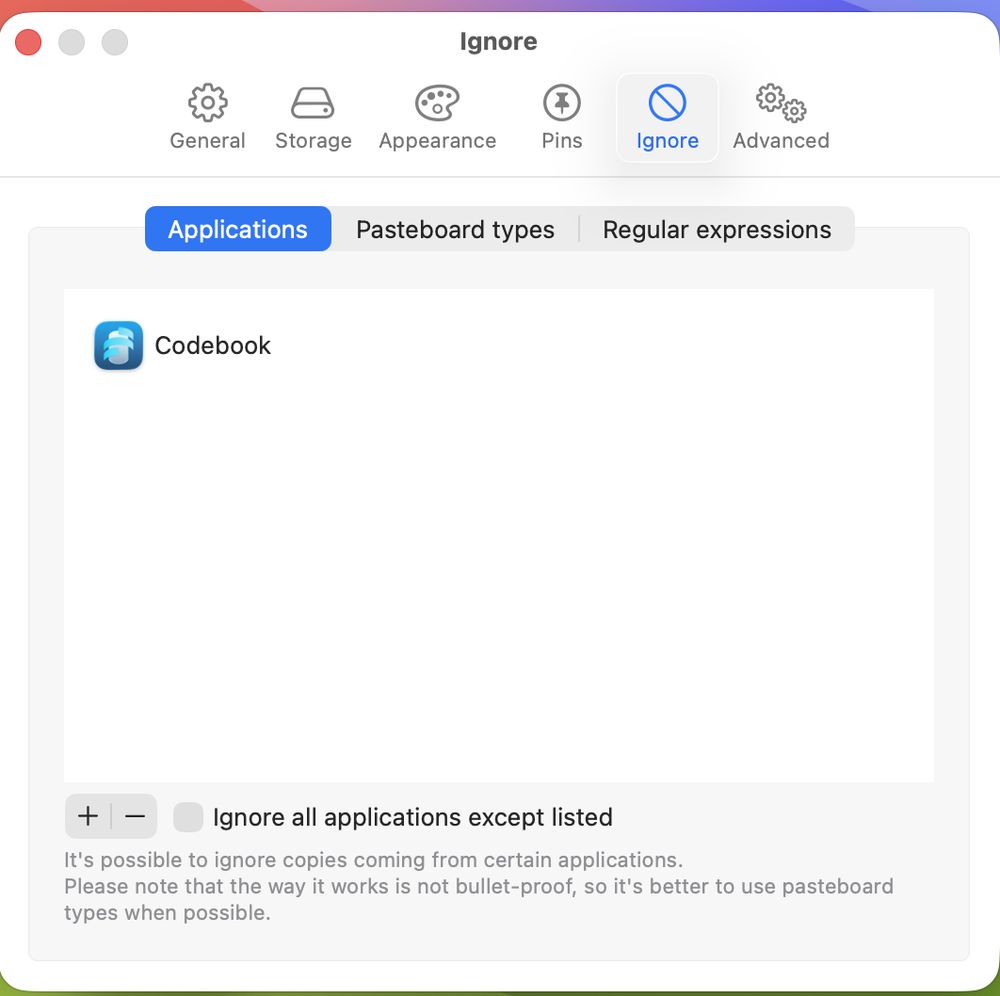
- Check whether it has a setting to ignore your password manager, and switch it on. Most do.
- Decide how long history should be kept, and shorten it as appropriate.
- Clear the history before you hand a machine to someone else.
- If your work involves client data, check your own policy before installing anything that logs it, and learn how to delete an entry from the log.
None of that is a reason to avoid clipboard managers. It is a reason to set one up deliberately rather than just accepting the defaults.
Summary
Try Win + V first. It’s already there. If you want more, Ditto is the straightforward pick on Windows, and CopyQ if you want the same tool across operating systems. Add PowerToys for paste-as-plain-text.
Then go into the settings and tell it what not to remember.