

Beyond File Explorer: Better File Managers for Windows
You want to move a batch of files from one folder to another, so you open a second File Explorer window, drag it into position next to the first, and hope you drop the files in the right place. File Explorer handles this, but it doesn’t make it easy.
Why use a different file manager
A file manager is the program you use to browse, copy, move, and rename files. Windows has shipped with File Explorer for ages, and for occasional use it’s fine. If you handle a lot of files, though, a replacement gives you some real advantages:
- Two panes side by side, so copying from here to there is a single keystroke rather than a drag between windows.
- Batch renaming, so a folder of
IMG_4821.jpgfiles can be renamed to2026-10-site-visit-01.jpgand so on in one step. - Keyboard control, so you can do most of your work without the mouse.
- Saved layouts, so the folders you use every day open the way you left them.
On my Mac I use Bloom in place of Finder, and it makes file work noticeably easier. Years ago on Windows I used Directory Opus and Total Commander, both of which are still going. I have done software development and system engineering most of my career, and am a keyboard power user for sure, so this class of utility program is really helpful in my day-to-day work. You might find they’re useful in your workflow, too.
Here’s what’s available today.
Start with what you already have: File Explorer and PowerToys
Windows 11 File Explorer has had tabs since the 2022 feature update, which is long after I started using a Mac. Press Ctrl + T for a new tab, then drag files onto another tab to move them there. If all you want is fewer windows, you may not need anything else.
Microsoft’s free PowerToys adds several useful features to Explorer:
- PowerRename, for batch renaming from the right-click menu.
- Peek, for previewing a file with Ctrl + Space, much like Quick Look (Space) on a Mac.
- File Locksmith, which shows which program is holding a file you can’t delete.
- New+, for creating new files from your own templates.
Use winget to install it:
winget install Microsoft.PowerToys
Explorer still has no dual-pane view, though. For that, you need one of the tools below.
Directory Opus: the most capable, and it shows
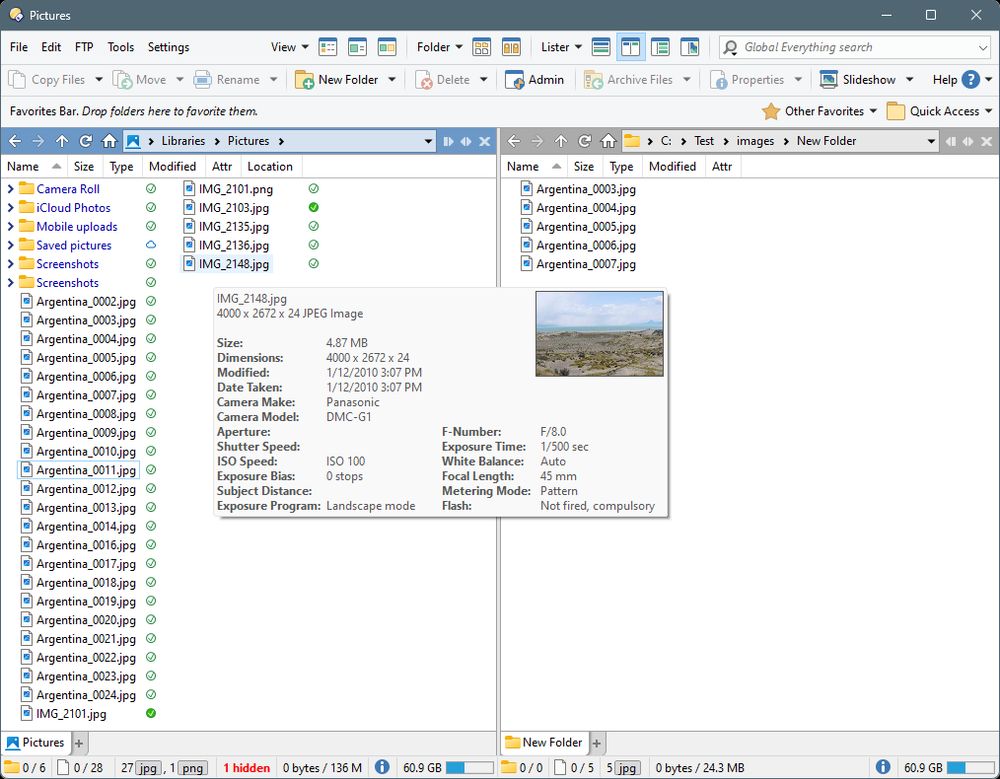
Directory Opus is from GPSoftware in Australia. It began on the Amiga in 1990 and has been on Windows for decades. It offers dual panes, dual folder trees, and tabs, and one of the most powerful batch rename tools available. It can also find duplicate files, synchronize folders, and open archives as if they were ordinary folders. You can set it to replace Explorer entirely, so Win + E and double-clicking a folder open Opus instead.
Nearly everything in it can be configured, which means it has a learning curve. Plan to spend some time with it.
It’s paid software, priced in Australian dollars: AUD 89 for one PC, AUD 129 for two, or AUD 249 for five, and each license also covers a personal laptop. The license never expires and includes a year of updates. After that, you can renew for newer versions (AUD 25 a year for a single license) or keep using the version you have. There’s a 30-day trial, which extends to 60 days if you register.
winget install GPSoftware.DirectoryOpus
Note
Directory Opus runs on 64-bit Intel and AMD Windows only, not ARM. If you use a Snapdragon-based Copilot+ PC, check before you buy.
Total Commander: two panes and the function keys
Total Commander has been around since 1993, when it was called Windows Commander. It’s the Windows descendant of Norton Commander from the DOS era: two panes, with the function keys along the bottom doing the main jobs. F5 copies, F6 moves, F7 makes a folder, and F8 deletes. If you read our post on function keys, this is where they are most useful.
It looks old-fashioned, but it’s fast and dependable, and the keyboard habits it teaches stay with you. It includes an FTP client, file comparison, folder synchronization, and a multi-rename tool.
A license costs EUR 42 plus VAT, with a 30-day trial. Registered users currently get updates for free.
winget install Ghisler.TotalCommander
If you like the approach but want something free, Double Commander is an open source program modeled on Total Commander. It runs on Windows, macOS, and Linux (winget install alexx2000.DoubleCommander).
Files: free, and looks like part of Windows
Files is a free, open source file manager designed to look like it belongs in Windows 11. It has tabs, dual panes, color tags, a preview pane, and a command palette. It’s the easiest one on this list to get used to, because it looks and behaves much like the Explorer you already know.
Install it from the Microsoft Store, or:
winget install FilesCommunity.Files
OneCommander: column view, like Finder
OneCommander is the one to try if you like the column view in macOS Finder. Each folder you open appears as a new column to the right, so you can see where you are in the folder tree. It also has dual panes, tabs, previews with Space, and regex renaming.
It’s free for personal use. Using it at work requires a Pro license, which costs USD 30 and never expires, so budget for it if you’re installing it on a company PC.
winget install MilosParipovic.OneCommander
XYplorer: portable and scriptable
XYplorer is tab-based with an optional second pane, and it’s portable. You can run it from a folder or a USB stick without installing it, and it stores its settings as plain text files. It also has its own built-in scripting language for automating repetitive tasks.
A Standard license is USD 34.95 and includes a year of upgrades. A Lifetime license is USD 69.95. The trial lasts 30 days.
Important
A file manager can see, move, and delete everything your account can. Download it from the vendor’s own site, the Microsoft Store, or winget, and not from a download portal.
Before you install one, think about this
A replacement file manager isn’t like other apps. It works directly with your files and plugs into Windows itself. A few things to check:
- On a company PC, check first. Many organizations restrict what can be installed, and some tools add items to the right-click menu or change which program opens folders. Ask your IT team before you install anything.
- Read the license. “Free” sometimes means free for personal use only. OneCommander is one example.
- Know how to undo “replace Explorer.” Tools that take over Win + E have a setting to turn that off. Find it before you need it, because Explorer is often where Windows sends you when something goes wrong.
- Look at the right-click menu. Some file managers add items to the Explorer right-click menu, and an outdated add-on can cause Explorer to hang. If Explorer becomes slow after an install, check here first.
None of that is a reason to stay with Explorer. It’s a reason to install carefully.
Summary
If you want fewer windows, start with Explorer tabs plus PowerToys. For a free upgrade, try Files. Try OneCommander if you like Finder’s column view. Try Total Commander or Double Commander if you want to work mostly from the keyboard. If you handle a lot of files and want the most capable tool, take the Directory Opus trial.
Pick one, use it for a week, and see how often you still reach for Explorer.